The screen everyone walks past.
Pick a tablet, install homerun, keep the screen awake, and put it where the whole house can see it. Here's how we'd do it.
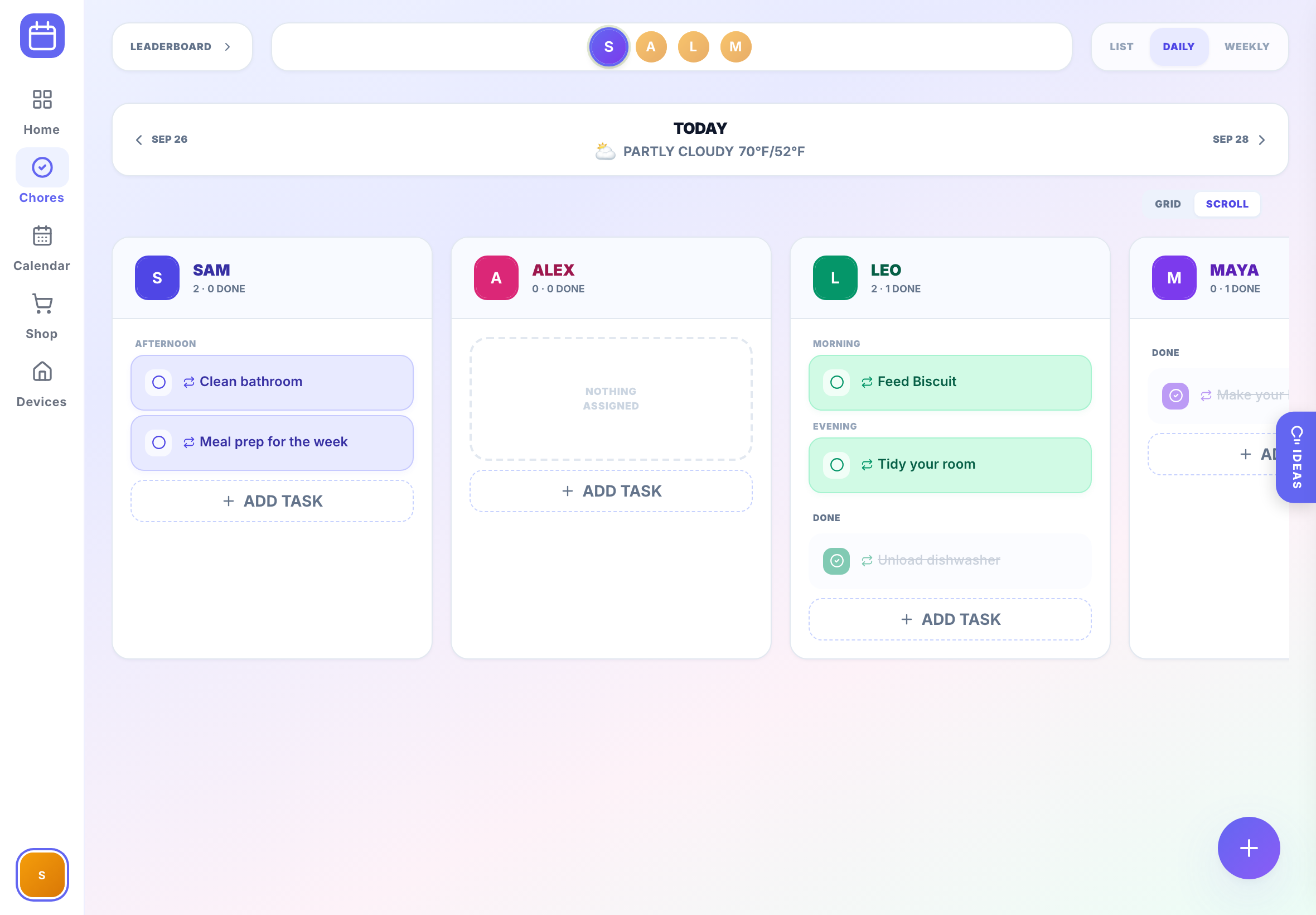
Any tablet works. These work best.
homerun runs in the browser, so there's nothing to buy if you already have a tablet. If you're shopping for one, here's what we recommend.
iPad
- Smooth, responsive touch
- Years of software updates
- Guided Access locks it to homerun
- A hand-me-down iPad works too
Samsung Galaxy Tab
- Chrome installs homerun as an app
- Can stay awake while charging
- Battery protection for always-plugged-in use
Amazon Fire
- Often on sale for very little
- Plenty for the chore board
- Slower, and no Chrome out of the box
- Get the version without lock-screen ads
iPad mini or 8 in
- Fits on a counter stand
- Good for 1–3 people
- Too small to read from across a room
What size?
The daily board gives each person a column, so more people means more screen.
Counter or desk
Couples and small homes. Best when you'll be within arm's reach.
The sweet spot
Readable from across the kitchen, fits 4–5 columns comfortably. Right for most homes.
Big families
Five or more people, or a big open room. Costs more and needs a sturdier mount.
Add homerun to the home screen.
homerun is a web app. Installing it gives it its own icon, opens it full screen without browser bars, and turns on notifications on iPad and iPhone. No app store needed.
iPad & iPhone
Safari- Open homerun in Safariapp.joinhome.run
- Tap ShareSquare with an arrow, or under •••
- Tap Add to Home ScreenKeep "Open as Web App" on
- Open homerun from the new icon
Notifications on iPad and iPhone only work from the installed app.
Android
Chrome- Open homerun in Chromeapp.joinhome.run
- Tap the ⋮ menuTop-right corner
- Tap Install appOr "Add to home screen"
- Open homerun from the new icon
Using Samsung Internet? Menu › Add page to › Home screen.
Amazon Fire
Silk browser- Open homerun in Silkapp.joinhome.run
- Bookmark the pageSilk menu › Add bookmark
- Long-press the bookmarkChoose "Add to Home Screen"
- Open homerun from the new icon
Some Fire versions show Add to Home Screen right in the Silk menu.
On a computer: in Chrome or Edge, click the install icon in the address bar. On a Mac with Safari, choose File › Add to Dock.
Stop the screen from going dark.
A home screen only helps if it's on. Tablets are built to sleep after a minute or two, so change that once and forget about it.
iPad
iPadOS- Set Auto-Lock to NeverSettings › Display & Brightness
- Turn off Low Power ModeSettings › Battery
Optional: lock the iPad to homerun with Guided Access (Settings › Accessibility). Set its own Display Auto-Lock to Never too.
Android
Names vary a little by brand- Tap Build number 7 timesSettings › About tablet
- Turn on Stay awakeSettings › Developer options
The screen now stays on while charging. On Samsung, Build number is under About tablet › Software information.
Amazon Fire
Fire OS- Tap Serial Number 7 timesSettings › Device Options › About
- Turn on Stay awakeDevice Options › Developer options
The screen now stays on while charging. Turn on Do Not Disturb so other apps stay quiet.
Where everyone already looks.
The best spot is one the whole house passes a few times a day, not the one that looks nicest.
- Kitchen by the fridge, the hallway to the garage, or a mudroom or command center
- Center it about 57–60 in (145–152 cm) off the floor for adults
- With young kids, drop it to about 48 in (122 cm). Adults can still read it.
- Landscape, so everyone's column fits side by side
- Near an outlet, with good Wi-Fi
- Away from direct sun, stove heat and sink splashes
Up on the wall. Cord out of sight.
Pick a mount that suits your wall and how often you'll take the tablet down.
Magnetic mount
A small plate on the wall and a case that snaps on. Lift it off to use in your hand. Wallee and VidaMount make these for many iPad and Galaxy models.
Renter-friendly
An adhesive magnetic mount holds a tablet without drilling. Clean the wall first and let the adhesive set for a day.
Flush frame
A slim frame screwed to the wall, like a picture. Looks built in. Make sure the frame fits your exact model and leaves the charging port open.
Counter stand
No wall needed. A weighted stand or an under-cabinet arm works well by the coffee maker.
Power it cleanly
- A right-angle USB-C (or Lightning) cable keeps the tablet flush
- A paintable cord cover hides the cable on the way to the outlet
- For no visible cord, a recessed in-wall power kit puts an outlet behind the tablet. Have an electrician install it, and never run a regular extension cord inside the wall.
- Use the charger that came with the tablet, or one with the same rating
Look after the battery
- Sitting at 100% all day ages a battery faster
- Turn on a charge limit if your tablet has one. Samsung calls it Battery protection.
- A smart plug on a schedule gives it a rest overnight
- If the battery ever swells or the case bulges, unplug it and replace it
We're not affiliated with any brand mentioned here. Check that a mount fits your exact tablet model before you buy.
One screen, everyone's home.
Sign in once
One adult signs in on the tablet. Everyone else just taps their face to switch profiles.
Add everyone
Kids get profiles without an email. Adults can join from their own phones with your household code.
Recaps on phones
Turn on the evening recap from each adult's phone, by push or text. The tablet stays quiet.
Setup questions.
Your screen is ready. Let's fill it.
Add your people and first chores in about two minutes.